 Appmost
Mobile app mockup tool for native screens
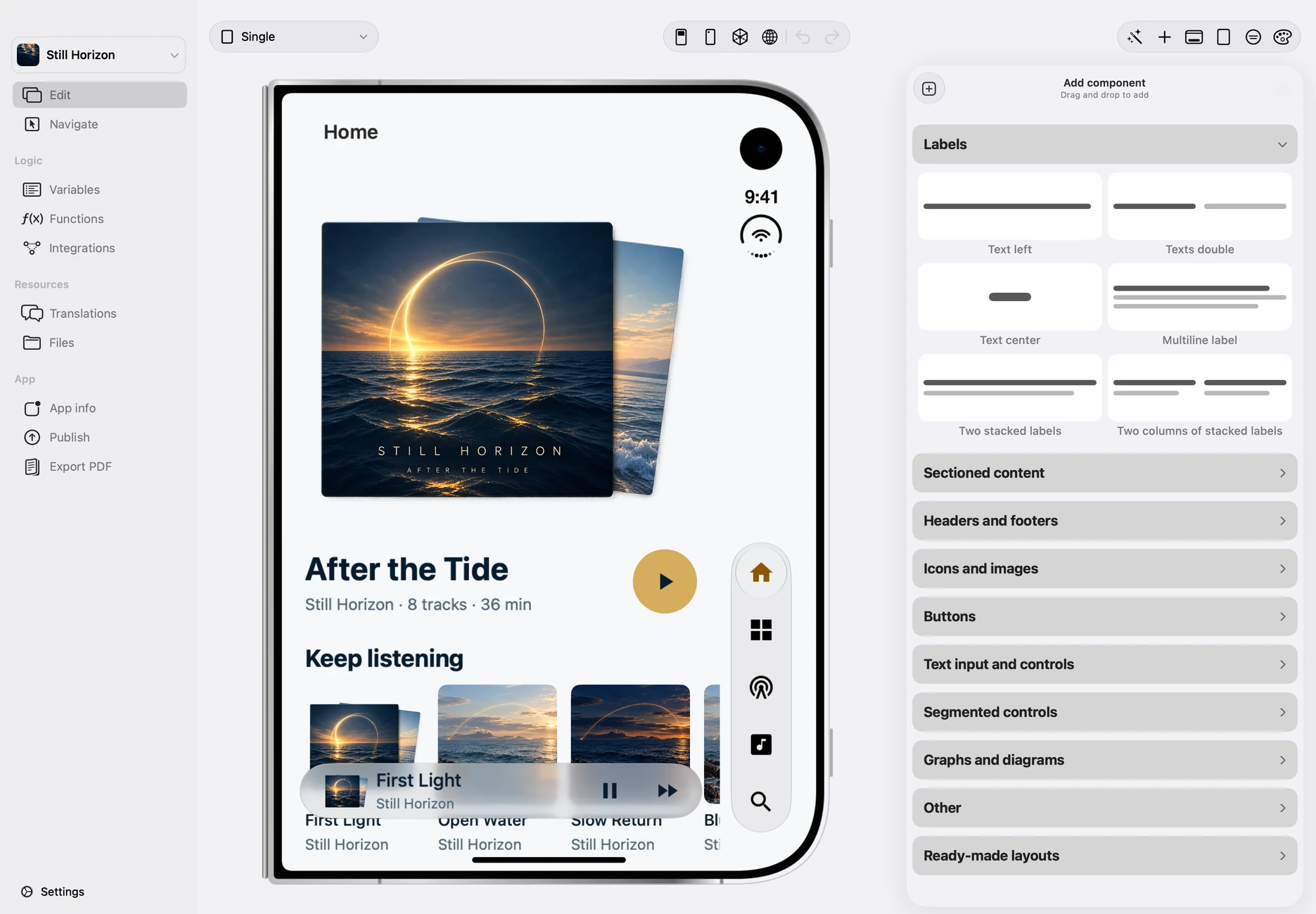
A mobile app mockup should show the product's actual screen direction, not a polished website frame. Appmost keeps the mockup inside the app project so an AI-generated screen set can be reviewed, edited, and carried toward iOS and Android builds.
Short answer
Use Appmost as a mobile app mockup tool when you need editable native-looking screens for a first product review. Start with one app category, define the screen set, generate the mockup with an AI agent, inspect the result in Appmost, then refine hierarchy, content, empty states, and visual tone before turning it into a flow prototype or build plan.
What a mockup should answer
A good app mockup answers whether the product can be understood on a phone. It should make the main screen, navigation, content density, and repeated UI patterns visible enough for someone to react without reading a product brief. If the screen set only looks attractive in isolation, the mockup is not ready for a useful review.
Appmost is strongest when the mockup is meant to become part of the app, not a disposable picture. The project can hold screens, components, layout decisions, and later flow or build work in one place. That keeps the visual direction close to the native app structure.
Mockup, prototype, and build plan are different
Teams often use "mockup" and "prototype" as if they mean the same thing. They do not. A mockup proves the screen direction. A prototype proves the journey. A build plan proves what must exist before device testing. Appmost can support all three, but the first review is clearer when the mockup has a narrower job.
| Artifact | Best question | Appmost next step |
|---|---|---|
| Screen mockup | Does the app direction make sense visually? | Generate and edit the core screen set in the native app project. |
| Flow prototype | Can someone complete the main journey? | Use the AI prototype workflow and app flow visualizer to connect screens and review paths. |
| Build plan | What needs logic, data, signing, or release work? | Use Appmost's project and build workflow once the screens are stable enough. |
Prompt examples for app mockups
Ask for a screen set, not a full company pitch. A useful prompt names the audience, platform feel, required screens, content density, and review goal. It should also say when the mockup should stay visual instead of inventing backend behavior.
Booking app: Create a mobile app mockup for homeowners booking local repair services. Include search, provider detail, quote request, schedule, confirmation, and saved providers. Keep the UI practical and easy to scan.
Subscription tracker: Generate iPhone screens for freelancers tracking recurring subscriptions. Include overview, subscription detail, renewal alert, add subscription, categories, and settings. Prioritize clear monthly cost visibility.
Field reporting: Create a native mobile mockup for field teams logging completed work. Include job list, job detail, photo note, material use, supervisor review, and submitted state. Make the layout durable for repeated use.
Clinic intake: Design mobile app mockups for patient check-in at a small clinic. Include appointment confirmation, symptoms, insurance photo, queue status, and help. Keep the tone calm and low-friction.
A practical Appmost workflow
Treat the first generation as material for review. The quality comes from editing the result: removing generic screens, making the main action obvious, matching repeated components, and checking that each screen belongs in the product.
- Define the first screen set. Pick five to eight screens that show the product's main surface and one secondary state.
- Prompt the AI agent through Appmost. Give it the app category, audience, screen list, layout constraints, and visual tone.
- Review the native preview. Check whether the screens look like an app someone could use, not a collection of detached marketing panels.
- Edit the weak parts. Tighten navigation labels, remove duplicated cards, add missing empty states, and align repeated rows or controls.
- Choose the next depth. If screen direction is the only question, export review material. If behavior matters, continue into flow review.
What to inspect before sharing
A mockup is usually shown too early. Spend a few minutes checking the screens as a set before sending them to stakeholders, clients, or teammates.
Screen hierarchy
The first visible action should match the app's core task. Secondary actions should not compete with it.
Reusable patterns
Lists, cards, forms, buttons, and settings rows should feel like one app, not six unrelated prompt outputs.
Real content
Use plausible names, values, states, and labels. Generic filler hides whether the screen actually works.
Native constraints
Check tap targets, dense tables, long labels, bottom navigation, and small-screen wrapping before the review.
Common mistakes
- Generating a landing page instead of app screens. The prompt should ask for mobile app screens and native controls.
- Keeping decorative dashboard cards. App mockups need task surfaces, not filler metrics and vague insight panels.
- Ignoring empty states. Empty lists, loading states, permission requests, and errors make the screen set easier to judge.
- Using one screenshot as the whole mockup. Most products need a small screen set so reviewers can understand the surrounding context.
- Polishing before deciding the screen structure. Typography and color cannot fix a screen that has the wrong job.
When Appmost is the right fit
Use Appmost when the mockup should stay close to a real native app project: founders shaping a first product direction, agencies preparing a client review, and product teams turning an idea into screens an AI agent can keep editing. It is also useful when the next step may be a flow prototype, local MCP editing, iOS and Android build preparation, or a TestFlight upload workflow.
Use a dedicated design-system workflow when the product already has mature components and many designers sharing libraries. Use a code-first spike when the hardest question is device APIs, live data, or performance. Use Appmost earlier, when the question is what the app should look like and whether the screen set deserves another iteration.